Validating and Importing
Validate Button
There are validation routines incorporated into the Import Utility that ensure:
-
Structural Integrity
-
Content Validation
Structural Integrity:
-
Are all necessary columns present?
-
Are Required fields present on the spread sheet?
-
Related Foreign Key Check? For example; you can't have a Location without a Building or a Cost Code without a Cost Centre
Content Validation:
-
Is the data in each row valid?
-
Are Required fields populated?
-
Do the Cell contents match data types? For example; don't allow words in numerical fields
-
Do the foreign keys exist in the primary table? For example; does an Asset's Building foreign key exist in the Building table?
-
Related Foreign Key Data? For example; does an Asset's Location belong to the Asset's Building?
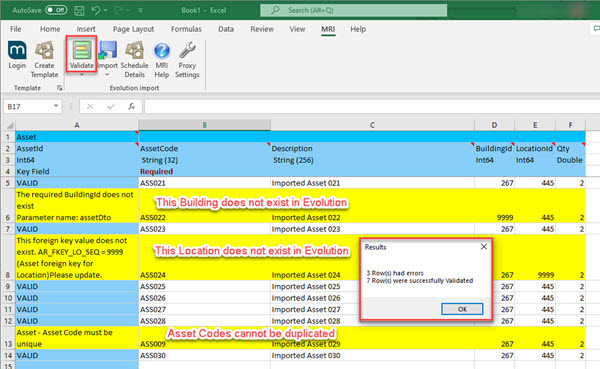
The Validate button allows you to check the entire spread sheet or selected rows, when clicked it will:
-
Run Structural Integrity checks
-
Loop through each row of data and run content validation
-
If OK, write VALID
-
If Failed, write Validation Failure messages and highlight row in yellow
-
A result summary is displayed at the end of the routine:
Import Button
The Import button allows you to import the entire spreadsheet, when clicked it will:
-
Run Structural Integrity checks
-
Loop through each row of data and run content validation:
-
If OK move to next
-
If Failed, write Validation Failure messages and highlight row yellow
-
-
Loop through each row and import where there is no validation failure
-
If OK write entity sequence number and colour row blue
-
If Fail, write error message and colour row yellow
-
-
A Result summary is displayed at the end of the process
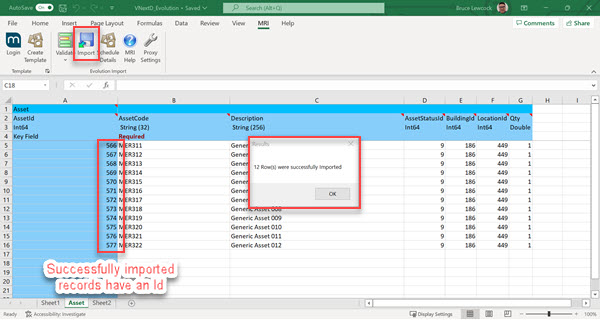
A confirmation message will be displayed and the relevant Ids displayed: